
Content and Experiences That Set You Apart
Digital Toolset with a Future Mindset

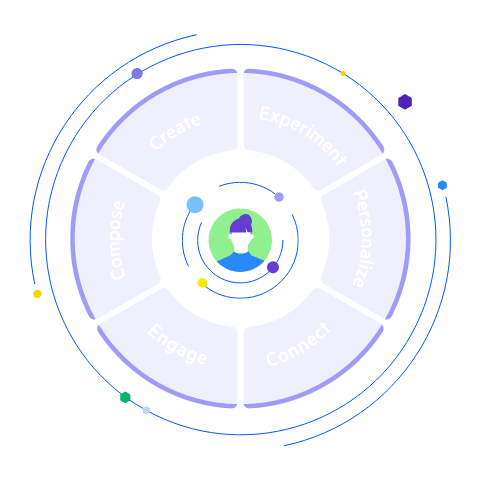
Create Experiences that Connect, Impress and Convert
All-round digital marketing hub and a platform for developers to deploy experiences for your websites, portals and applications. Effortlessly build and deliver digital-first experiences across channels, audiences and geographies. Unlock your creative potential with an intuitive, practitioner-centric content management platform—no matter if you’re writing content or code.

Single-source Omnichannel Experience Management
From engaging websites to personalized multichannel experiences, enhanced with customer and enterprise data. Intuitive, intelligent and easy to use tools to orchestrate customer-centric experiences that drive ROI and brand loyalty.
Modern Tech Stack for Experiences Beyond Web
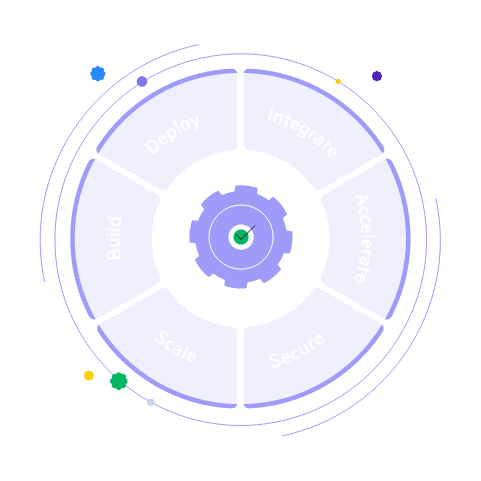
Better, faster, smarter technology for next-generation digital-first content and UX. Build experiences driven by technology-agnostic content. Code and deliver faster, across platforms and devices.
Sitefinity 15.1: Ready for Your Next Wins
Innovation for higher productivity and faster business outcomes.
Learn MoreAward Winning Content Management and Digital Experience Leader for 10+ Years
Loved by customers and recognized by analysts, Sitefinity empowers businesses to orchestrate engaging user-centric experiences with minimal overhead.






_leader.tmb-thumb160.png?Culture=en&sfvrsn=f35751af_1)

Your Single Platform for Evolved Customer Experiences
Take control of digital transformation. Create, personalize, integrate and automate to deliver accessible, engaging, and relevant digital interactions at speed and scale.
Omnichannel CMS
Meet and exceed increased customer expectations for personalized, multichannel, always-on experiences with an all-round web CMS that's easy by design.
Sitefinity CMS
Cloud-Native
Globally available enterprise infrastructure to manage and deliver customer-centric digital experiences at scale. Available as SaaS and PaaS.
Sitefinity Cloud
CDP & Marketing
Native Customer Data Platform for building one-to-one digital relationships. Capture every customer interaction. Optimize campaign performance. Make data-driven decisions.
Sitefinity Insight
Result-Driven and People-Centric. Tailored to You.
500+
Global Partner Network
5K+
A vibrant dev community
12K+
Websites on 6 continents
1B+
Global audience in 20+ languages

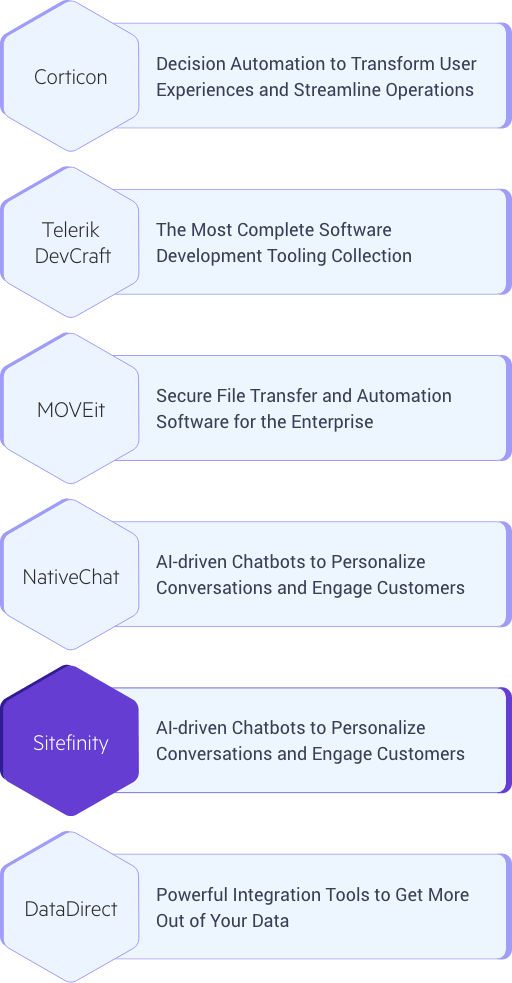
Sitefinity Powers Progress DX
Adopt a flexible framework that scales with your growth strategy, with best-in-breed tools that plug and play with your technology stack.
Want to Know More?

How to Get Started with Sitefinity
Elevate your digital experiences. Try the latest releases and find essential resources to help you get started with Sitefinity